Help
Logging in to EdShare
Logging into EdShare is really easy – you just need to use your usual University username and password. If you cannot login to EdShare, make sure that your University account works.
Searching and Browsing
You can find resources in EdShare by using:
1. The search facilities – you can do a simple search in EdShare by typing a word, phrase, course code or name into the box in the top right-hand corner of any pages. Click on "Search" and you will retrieve the shares which satisfy your search.
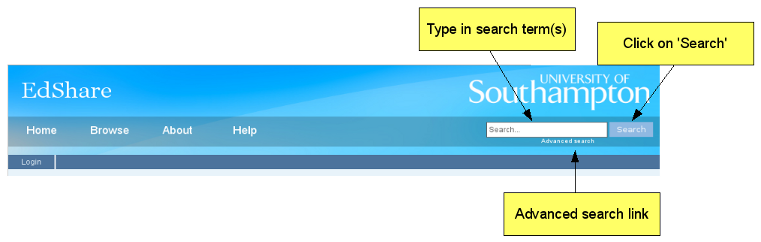
Click on “Advanced search” just below the search box in the top right-hand corner of the screen and you will be presented with a number of search boxes. Each search box relates to a field in an EdShare and enables you to search in a very precise way.
2. Browsing is a way to access shares if you are interested in exploring what has already been added to EdShare. There are several ways of browsing:
- by year,
- by author – the name of a person who created a resource,
- by tags,
- by course code – the code used by the University to identify a module,
- by division – school, service group or other part of the University,
- and by users by expertise.
To browse resources select Browse from the navigation bar at the top of the screen. Then choose which area you wish to browse by eg. "course code".
On the abstract page, you should be able to see what subjects are pertinent to the current document. Clicking on one of those subjects will take you back to the relevant browse by subject view.
3. or the Latest Additions which are available from the front page.
Uploading a Resource (log in required)
Adding content to EdShare is really easy. First, decide which of these things you want to do:
- Add a single file,
- Add a link to a website,
- Add a zip file of lots of different, individual files, or
- Add a zip file, which you want to keep as a single item.
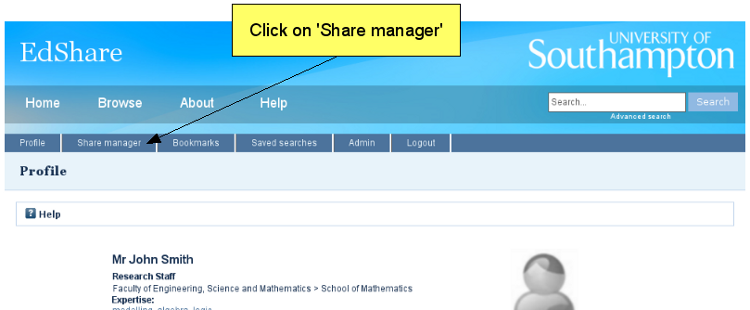
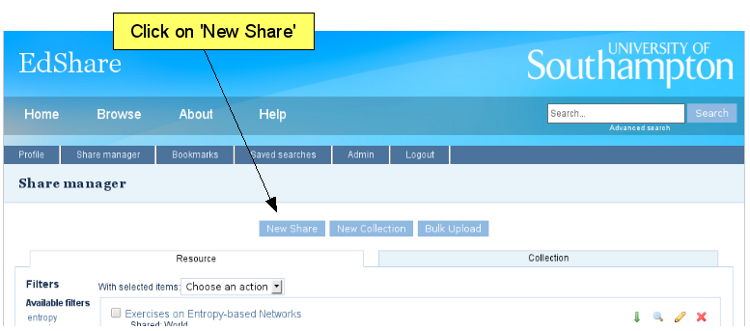
From the next screen, you will be able to click on "New Share" if you wish to add a single file, a link to a website or make a bulk upload of individual files to separate shares.
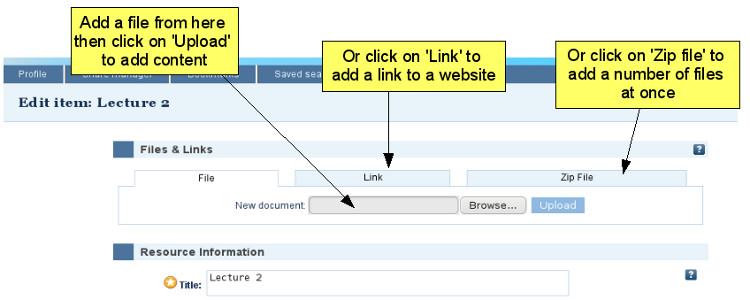
To add a new file, browse in the appropriate file on your PC and then highlight it to add it to EdShare. To complete the upload, you just need to click on the "Upload" button.
Work through the full screen of fields to provide as much information about what you are adding as possible. This information will help you to find the item again as well as helping other people to find your materials.
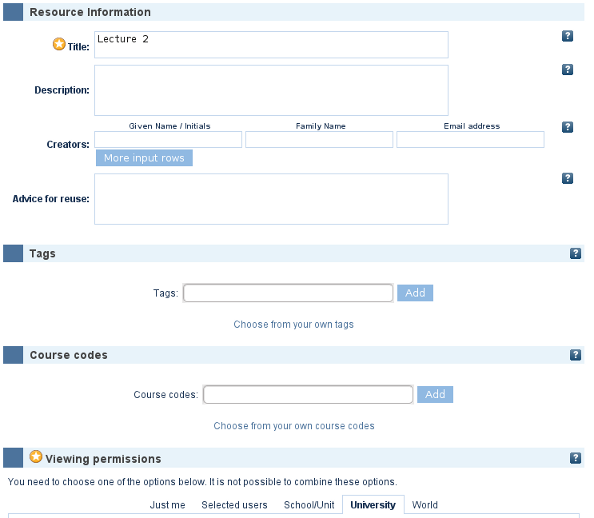
A red star indicates where EdShare needs some information to be provided.Please add your own title – this might be the title of the file you are adding – the Word document, Powerpoint slides or PDF that you have created.
In the description field, it would be helpful if you provided an abstract for the file, and the kind of context in which it might be used – e.g. as a lecture, a case study, some guidelines or information for individual students to use in a particular task.
The Advice for re-use field is provided for you to give information to others interested in modifiying, adding to or simply using as is, the material that you have added to EdShare.
Tags are a way to provide simple words or phrases which describe the content, intended audience or other useful aspects of the resources which will help others to understand what they are, and help you to remember what the item is.
Course codes are the standard University codes for taught modules which you can add in the usual way: COMP1003, HIST3014, PSYC6018 etc.
Viewing permissions: the default for all added material is "University" – any one who is a member of the University of Southampton can login to EdShare (or access EdShare from a University networked PC/workstation) and download the material you have provided in EdShare. If you alter the permission level to "World" – then you are making the resources available to anyone in the world. There are other levels of permission which you can select, including sharing with all of the members of your own School/academic group, or a group of individuals whose ids you already know (and others).